Screenshots for
AI agents,
without the mess.
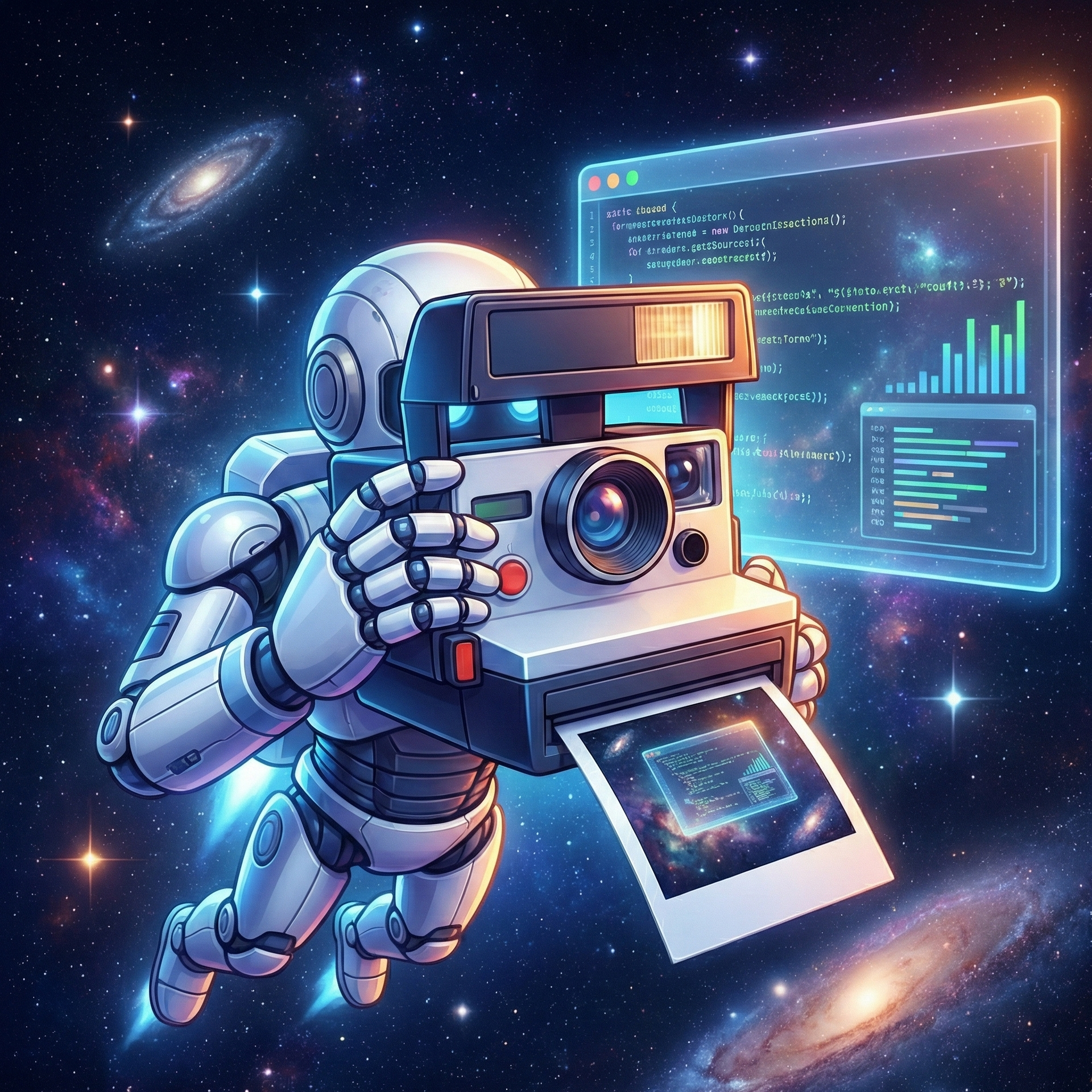
Stop littering your Desktop with screenshots just to share them with Claude, Codex, or Copilot. SnapAgent captures, saves to a dedicated folder, and pastes the file path straight into your terminal — automatically.
See it in action
You've been here before.
Your AI coding agent needs to see something on screen — a layout bug, an error message, a design reference.
You take a screenshot. It lands on your Desktop. Or Downloads. Or wherever macOS feels like putting it.
You hunt for the file, copy the path, switch back to your terminal, and paste it in. Again.
By end of day, your Desktop is a graveyard of Screenshot 2026-02-13 at 3.42.17 PM.png files you'll never open again.
SnapAgent fixes all of this with a single hotkey.
Everything you need,
nothing you don't.
One tool that handles capture, file management, and path injection — so you never leave your terminal.
Region & Full Screen
Grab exactly what your AI agent needs to see — a UI element, an error, or the whole screen.
Auto Path Injection
The screenshot file path is pasted into your terminal automatically. No Finder, no dragging, no copying.
Menu Bar Management
Browse recent captures, copy paths, or reveal in Finder — all from the menu bar without switching apps.
Auto Cleanup
Screenshots auto-delete after a set time. No more Desktop graveyards of one-off captures.
Custom Hotkeys
Rebind capture shortcuts to whatever key combo fits your muscle memory.
Dedicated Save Folder
Screenshots go to ~/.ai-screenshots/ — not your Desktop, not your Downloads. Out of sight.
One hotkey. That's it.
Your AI agent asks to see something. Here's what happens next.
Capture
Hit the hotkey. Select the region. SnapAgent saves it to a dedicated folder — not your Desktop.
Inject
The file path is automatically pasted into whatever terminal you were just working in.
Use
Hit enter. Claude, Copilot, or whatever you're running now has the screenshot.
Works where you work.
SnapAgent detects your last active terminal and pastes the path there. No configuration needed.
SnapAgent works with terminal-based AI workflows — not compatible with desktop chat apps like Claude Desktop, Codex, or other GUI clients.
Clean Desktop.
Faster workflow.
Stop scattering screenshots across your filesystem just to share them with an AI. There's a better way.
Questions or issues? Reach out at josh@baxlylabs.com